Dynamically showcases your live Spotify listening activity on your GitHub profile with a stylish, customizable card. This service is hosted on Render and kept active 24/7 using a health check monitor.
- Live Activity: The card updates to show what you're listening to in near real-time.
- Two Awesome Themes: Choose between a sleek
elitetheme or a customizableclassictheme. - Highly Customizable: Tailor the colors of the
classictheme to perfectly match your GitHub profile's aesthetic. - Easy Setup: Get your card up and running in just a couple of minutes.
- Reliable: Deployed on Render and monitored to ensure it's always online.
Follow these four simple steps to add the Spotify card to your profile:
1. Authorize with Spotify
- Click the "Login with Spotify" button at the top of this README.
- You will be redirected to Spotify to grant permission for the application to view your current listening activity.
2. Get Your User ID (UID)
- After successful authorization, you will be redirected to a page displaying your unique
userId. Copy this ID. - (Your ID is:
31lmzhpy2migtudcggvvnrrth73y)
3. Generate the Markdown Code
- Copy the following Markdown snippet. It has already been pre-filled with your User ID.
[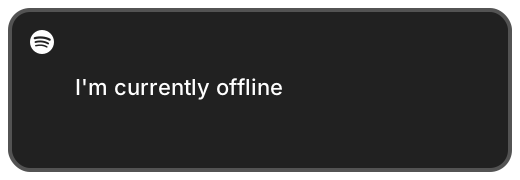](https://open.spotify.com/)
4. Add to Your GitHub Profile
- Go to your special GitHub repository that has the same name as your username (
your-username/your-username). - Edit the
README.mdfile in that repository. - Paste the Markdown code snippet wherever you'd like the card to appear.
- Save the changes, and the card will now be visible on your profile!
You can customize the appearance of your card by adding query parameters to the URL.
| Parameter | Description | Example |
|---|---|---|
uid |
(Required) Your unique Spotify User ID obtained after logging in. | &uid=31lmzhpy2migtudcggvvnrrth73y |
| Parameter | Description | Default | Example |
|---|---|---|---|
theme |
Sets the card's theme to elite. |
classic |
&theme=elite |
logo |
Toggles the Spotify logo. (true or false) |
true |
&logo=false |
Example URL for a logo-free Elite theme:
https://spotify-github-profile.onrender.com/card?uid=...&theme=elite&logo=false
| Parameter | Description | Default | Example |
|---|---|---|---|
logo |
Toggles the Spotify logo. (true or false) |
true |
&logo=false |
bg |
Background color (HEX code without '#'). | 212121 |
&bg=f5f5f5 |
border |
Border color (HEX code without '#'). | 535353 |
&border=e0e0e0 |
color |
Text color for the "Not playing" message (HEX code without '#'). | fff |
&color=000 |
Example URL for a light-mode Classic theme:
https://spotify-github-profile.onrender.com/card?uid=...&bg=f5f5f5&border=e0e0e0&color=000
If you prefer to host this project on your own server:
Prerequisites:
- Node.js (v18 or higher)
- A Redis instance (local or cloud)
1. Clone the Repository:
bash git clone https://github.com/your-username/spotify-github-profile.git cd spotify-github-profile
2. Install Dependencies:
bash npm install
3. Set up a Spotify Developer App:
- Go to the Spotify Developer Dashboard and create a new application.
- Copy your CLIENT_ID and CLIENT_SECRET.
- In the app settings, add http://localhost:3000/api/callback to the "Redirect URIs".
4. Configure Environment Variables:
- Create a .env file in the root directory and fill it with your credentials:
```env
# Credentials from your Spotify Developer App
CLIENT_ID=YOUR_SPOTIFY_CLIENT_ID
CLIENT_SECRET=YOUR_SPOTIFY_CLIENT_SECRET
  # Development URLs
  APP_URL=http://localhost:3000
  REDIRECT_URI=http://localhost:3000/api/callback

  # Connection string for your Redis instance
  REDIS_URL=redis://localhost:6379

  # Port for the server
  PORT=3000
  ```
5. Start the Development Server:
bash npm run dev
The application will now be running at http://localhost:3000.
- Backend: Node.js with Fastify
- Language: TypeScript
- Data Storage: Redis is used for caching user sessions and access tokens.
- Deployment: Hosted on Render.
If you found this project helpful, please consider leaving a 🌟 star. Thank you!
-
If you find any errors, you can contact luppux